


liked this post? share it on social
In June, Flodesk launched Studio–a new tool that speeds up the process of designing on-brand emails. As a Flodesk partner, I got early access to experiment with Studio, and I’m about to share my honest thoughts with you.
What is Flodesk Studio?
I love a well-designed email, which is why I signed up for Flodesk in the first place.
It’s always been relatively easy to design in Flodesk using “blocks,” which are editable sections of your email that show up as images. But the existing set of blocks is limited, and it sometimes takes a fair bit of tweaking to customize them.
As part of Flodesk Studio, Flodesk hired human designers to create hundreds of new blocks. Then they created a tool that lets you upload your branding so that it gets automatically applied to the blocks before you add them to an email. Of course, you can also customize them yourself.
How Flodesk Studio works
The first time you log in, you’ll be prompted to add your branding. This includes your color palette, your logo, a brand photo, and your fonts.
It also allows you to add notes on your brand voice and what you do so that it can give you draft email content (but I skipped this part, since I handle the email copy myself).
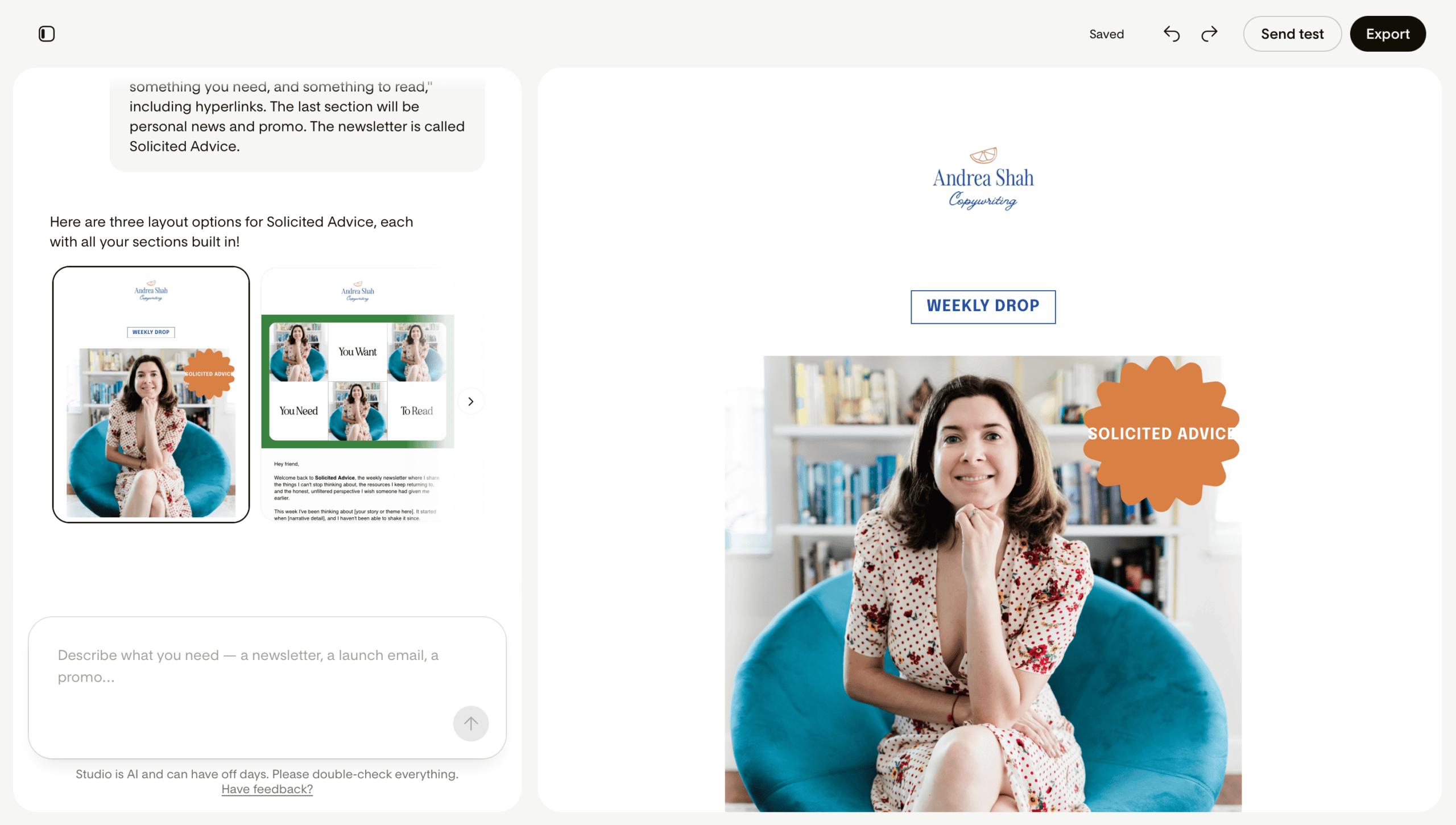
Once your brand is set up, you’ll go to the main page, where you prompt Flodesk to create the email you need. They have pre-built prompts, or you can just type in what you want, like I did in the screenshot below.

Every prompt generates 3 different emails:
The first one is the most “designed,” using several of the new layouts added to Flodesk Studio.

The second one is mostly plain text with a couple of layouts, including a header.

The third one is all plain text with your logo and the sections you requested.

You can choose your preferred template as a starting point and start editing, or you can prompt the tool to generate new emails or change something specific.
I chose the first template, then started adjusting, adding, and removing sections. Basically, Studio jump-started the process, and then I found some more blocks I liked and tweaked them to fit my vision (like the mini-banners with icons you see below).

New features in Flodesk Studio
One of the first things I noticed in Flodesk Studio is that each element of a block has a toggle, so you can switch them on and off.

In previous versions of Flodesk, some blocks had extra headlines or buttons I didn’t always need, but it was tricky to remove them.
Another thing I loved is that when you’re adding or changing a block, it tips you off as to how many characters you can fit in the headline, subhead, and button without making a mess out of the layout.
One thing that jumped out at me once I started experimenting with Studio: Flodesk really understands their user base and what kinds of emails they send.
Other email tools often focus on e-commerce emails, but don’t have a lot of layout options for business owners who send weekly newsletters, host online events, or share blog posts. Studio does, because Flodesk knows that their audience includes service providers, course creators, e-commerce companies, and people with offline businesses.
Other elements I immediately liked in Flodesk Studio
- More updated ways to apply branding: Instead of having to tweak every block to match my colors and fonts, Studio accelerates the process (of all the ways to use AI, this is one I can get behind)
- Stickers! On sections with a photo, you can add a “sticker,” then change the shape, text, and color.
- New layout types: In addition to the basics like text & images, you’ll find layouts for bios, recipes, testimonials, podcast episodes, and more.
Changes I’m hoping to see in Studio soon
- The ability to start a new email without prompting: Now that I’m familiar with the new blocks, I’d love to just open up a new email and start designing. If there’s a way to do this in Flodesk Studio, I haven’t found it yet.
- Links within list blocks: There are so many gorgeous blocks that let you add a list to your email, but you can’t add links to the text within list items.
- Header layouts with smaller photos: I’m pro-having a photo of yourself in the header, but many of the layouts were designed with a large photo in mind. I’d love to see some that look beautiful but feature smaller photos.
My take on Flodesk Studio as a self-described “AI skeptic”
I’m definitely not a huge user of AI (you could call me an AI skeptic), so candidly, I wasn’t sure how I’d feel about Studio.
First things first, I appreciate that Flodesk has been up front about hiring human designers to create the layouts used in Studio (and as I said above, when designing, they clearly put thought into how their audience uses email).
When I call myself an AI skeptic, I mean that I don’t want to outsource my creativity to AI, even if it would make me more efficient. Typing, backspacing, and typing again is a key part of my creative process. So is pausing to make myself another cup of tea or stare out the window, and my work is better for it.
However, I’m okay with using AI to speed up tedious tasks like applying colors and fonts to a pre-designed layout. I can think of ten things I’d rather be doing, And because Studio applies my branding, I’m never starting from square one even when I add a new block to an email.
Flodesk Studio is currently free in beta. And you don’t have to use Flodesk to use it—you can export the emails you design in Studio to any email service provider. If you’re interested, give it a try at studio.flodesk.com. (And if you know you want to sign up for Flodesk, you can use my link to save 25% off your first year.)
Some links in this post are affiliate links. If you make a purchase, I may earn a commission. I only share tools I genuinely use and believe in.


